
In the classroom screen, you can send/receive assignments to/from students in your class.
This guide describes the basic operations to assign/grade assignments.
For an overview of each function, select menu items on the left pane.
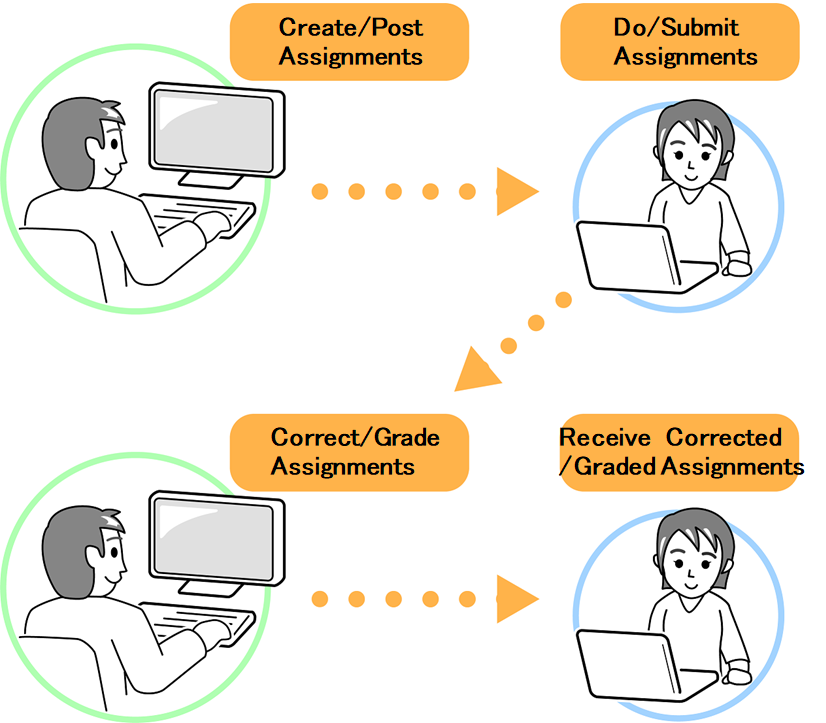
Operations Flow
Creating Assignments (Teacher)
Select a lesson and create a notebook.
“Creating New Notebooks for the Lesson”
↓
Assign an assignment.
“Creating Locations for Submitting Assignments”
“Creating Assignments”
↓
Sending Assignments (Teacher)
Send assignments to students.
“Sending Sticky Notes”
↓
Viewing Assignments (Student)
Select a lesson and create a notebook.
“Creating Notebooks for the Lesson”
↓
View assignments.
“Checking Locations for Submitting Assignments”
“Downloading Assignments”
↓
Completing Assignments (Student)
Work with assignments.
“Creating Response Sticky Notes”
↓
Submitting Assignments (Student)
Submit your responses.
“Submitting Sticky Notes”
↓
Checking and Grading (Teacher)
Check submitted response sticky notes.
“Checking Submitted Sticky Notes”
↓
Correct/grade student’s responses.
“Correcting/Grading Submitted Sticky Notes”
↓
Returning Assignments (Teacher)
Return corrected/graded assignments to students.
“Returning Corrected/Graded Sticky Notes”
↓
Receiving Returned Assignments (Student)
Receive returned assignments.
“Downloading Returned Sticky Notes”